
Turn on ADB Debugging & Apps from Unknown Sources
Step 1: Go to the Home Screen on your Fire TV Stick by clicking the Home Button on your Fire TV Stick Remote
Step 2: Go to Settings on the Home Screen of your Fire TV Stick
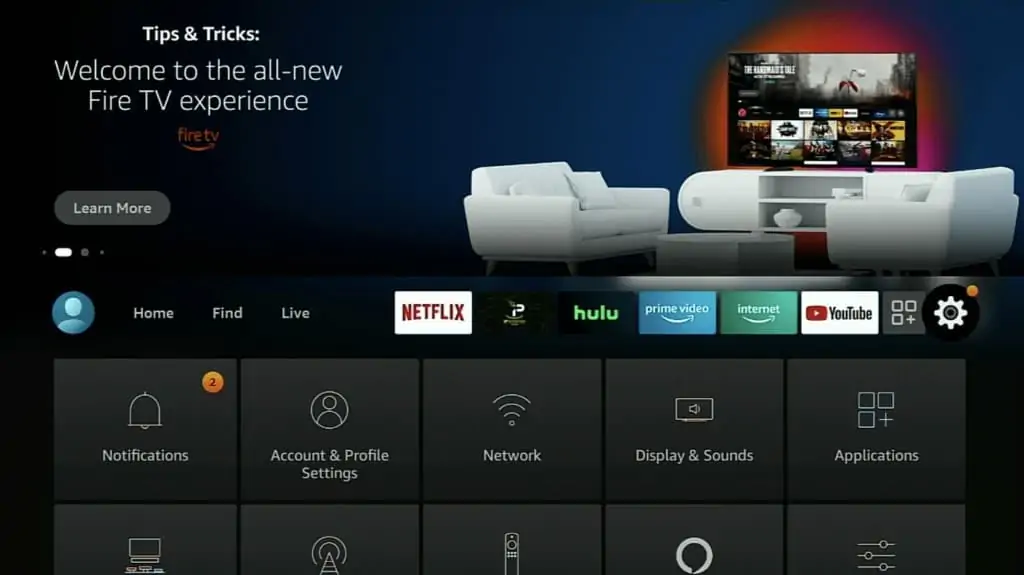
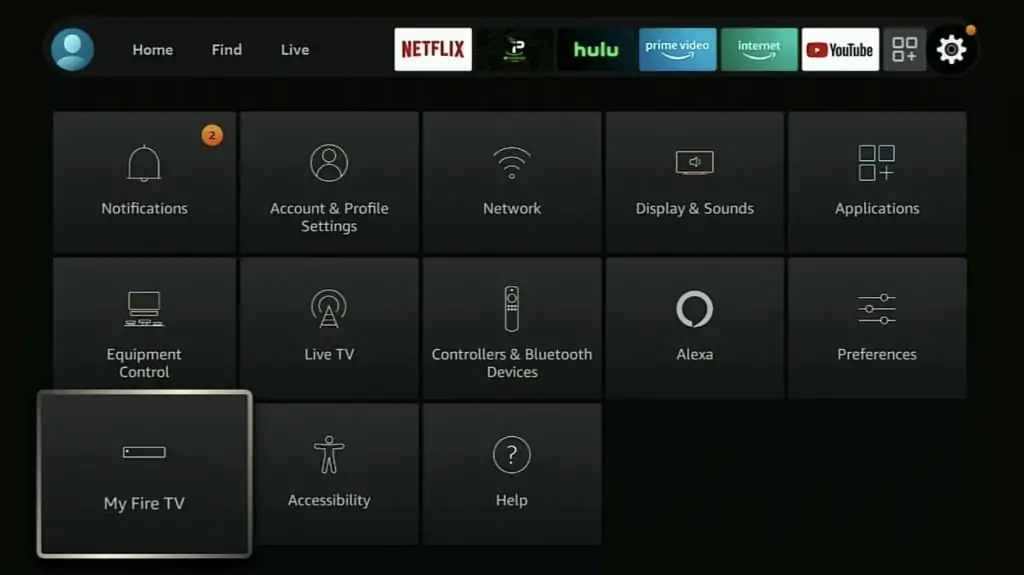
Step 3: Select My Fire TV from the menu of options
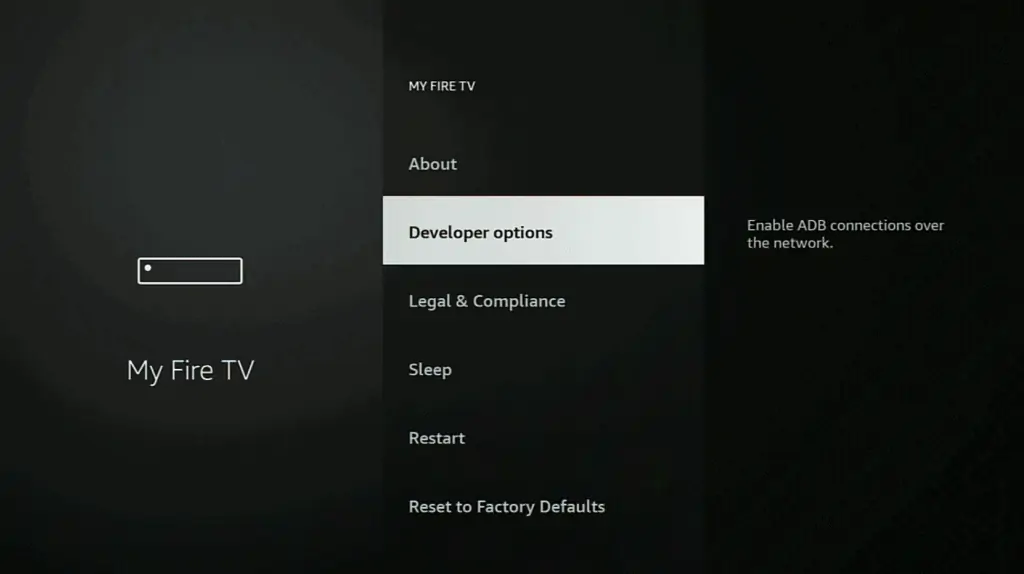
Step 4: Select Developer Options
IMPORTANT: Please see steps below if you don’t see Developer Options on your screen.
IMPORTANT: If you don’t see Developer Options, click on About once under the My Fire TV section.
Notice how Developer Options is missing from the screen below.
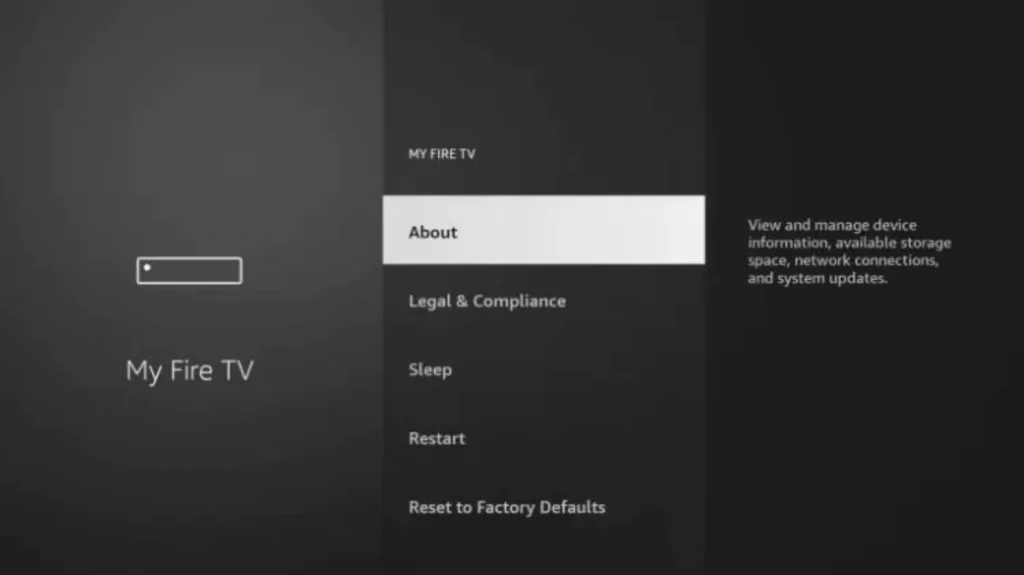
Once you click on About, hover over Fire TV Stick and click the OK button on your remote 7 times to become a developer.
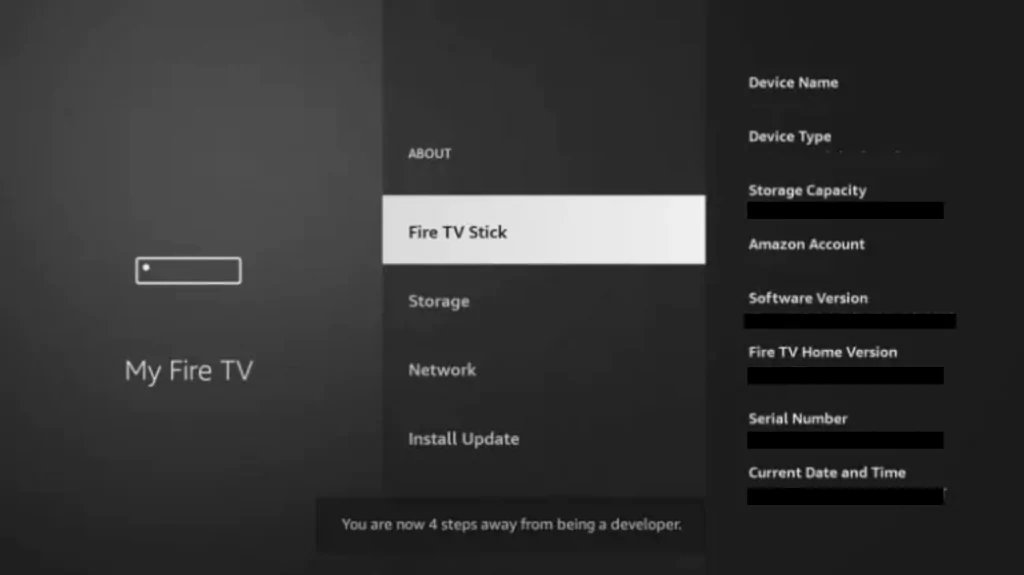
When you click the back button now, you will see that Developer Options appears as an option under the My Fire TV section.
Now you can select Developer Options.
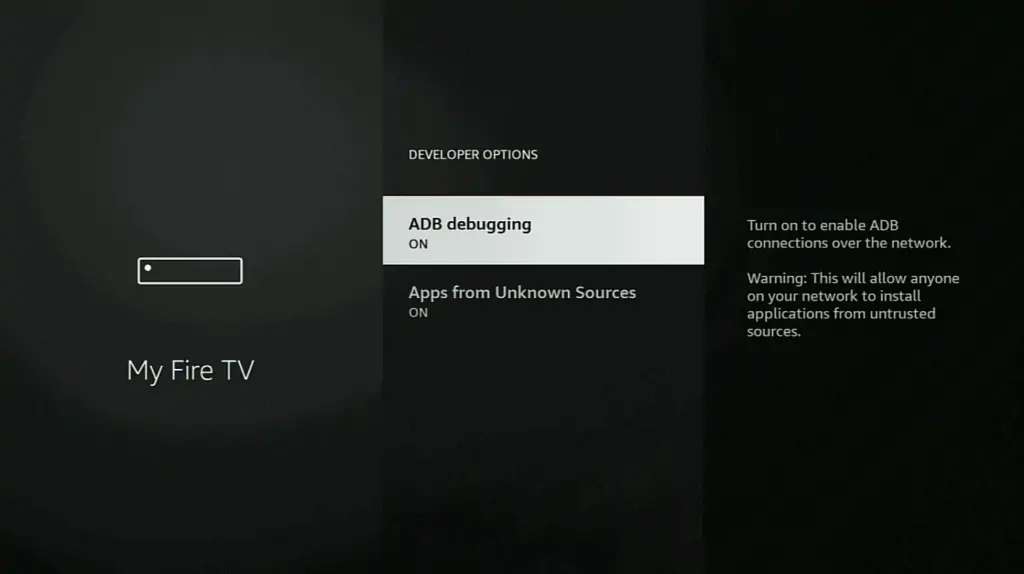
Step 5: Turn on ADB Debugging and Apps from Unknown Sources
Install Downloader
Step 1: Go back to Home Screen on your Fire TV Stick by clicking the Home Button on your Fire TV Stick Remote
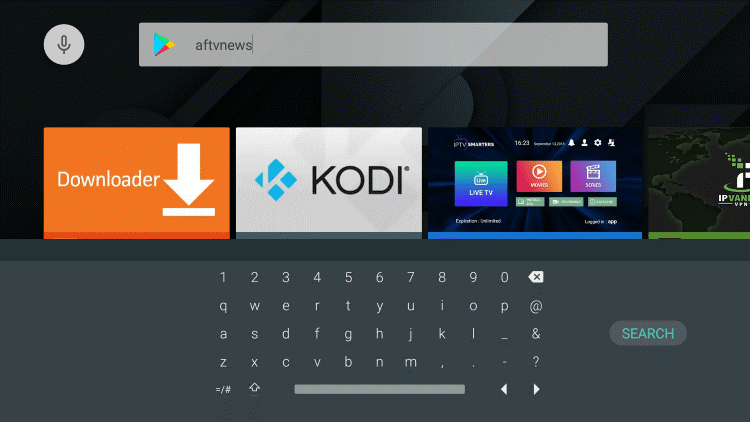
Step 2: Go to Find and then click on the Search button. Search for Downloader
Step 2: Select Downloader from the list of options and click Download. Now Downloader will install onto your Firestick
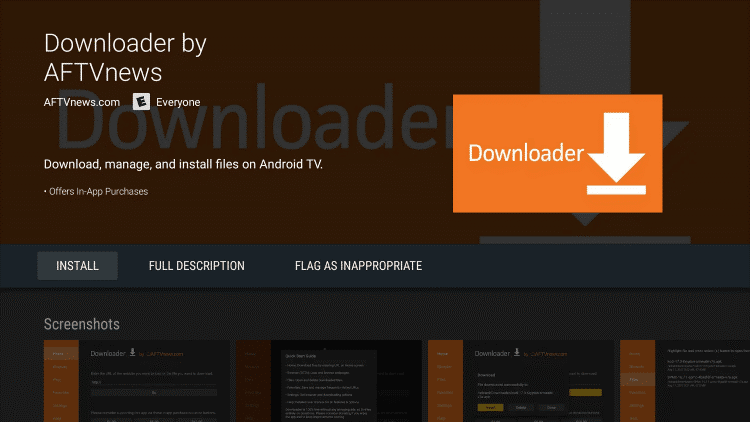
Step 3: Click on Open to open the Downloader app
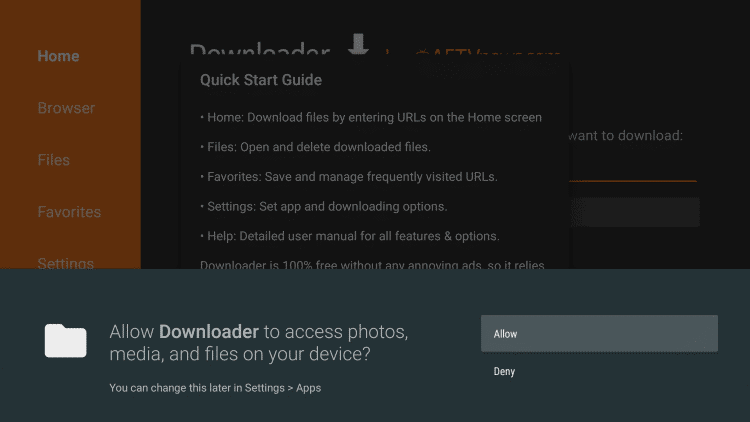
Step 4: Once the Downloader app opens, click Allow then click OK
Install Secret App
Step 1:Go to the URL area in Downloader and type in
• For Secret TV:
http://app.secrettv.stream then click Go
• For Secret VOD:
http://vod.secrettv.stream then click Go
Step 2:When prompted, click on Install. Now the app will install onto your firestick
How to use Secret apps on Firestick
When you launch the app for the first time, you will need to enter your Username and Password which was provided to you.
Once you enter all of your credentials, click on Login
You’re all set, enjoy!